Everything from Daily Dashboard on desktop lives here too, just in a single column you scroll through top to bottom. A few things work differently on mobile, worth knowing up front.

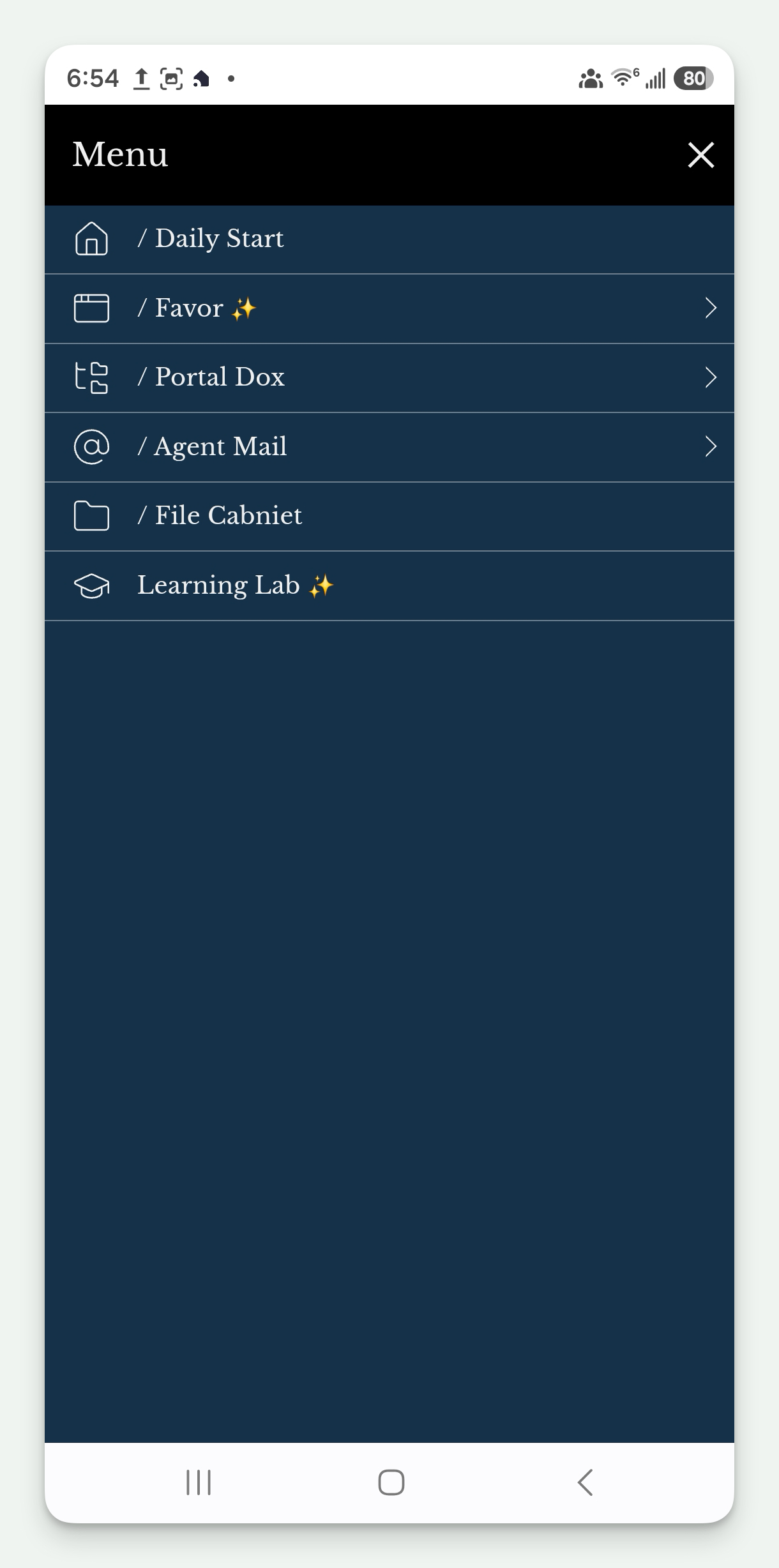
Tap the Kingdom inQ logo in the top left anytime to return to your Daily Start. The hamburger icon next to it opens your Menu, the same six destinations as desktop's left-side menu, Daily Start, Favor, Portal Dox, Agent Mail, File Cabinet, and Learning Lab.
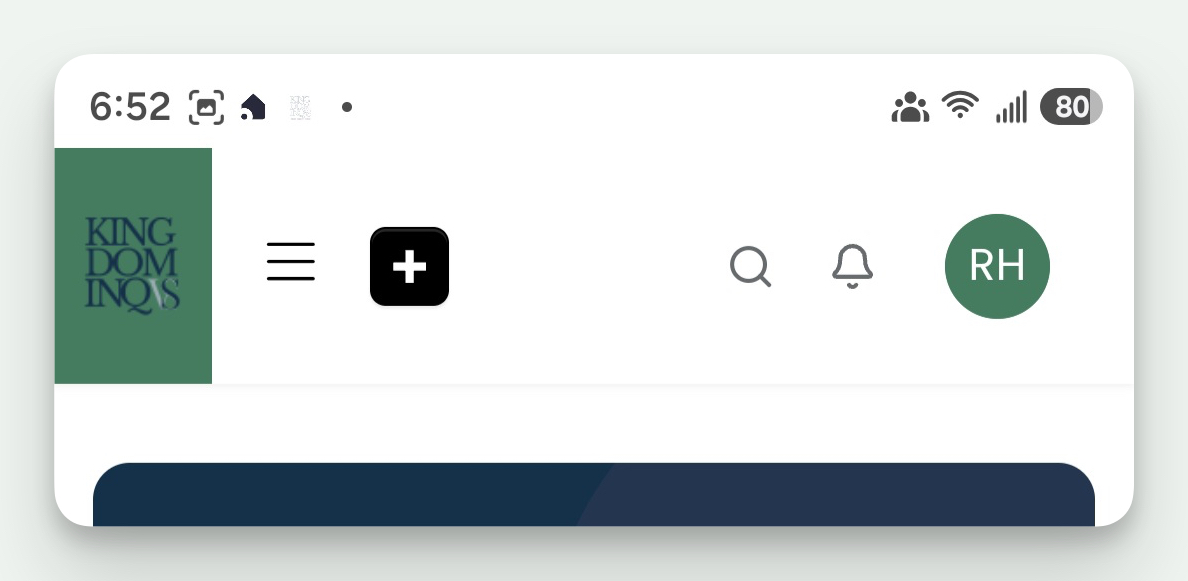
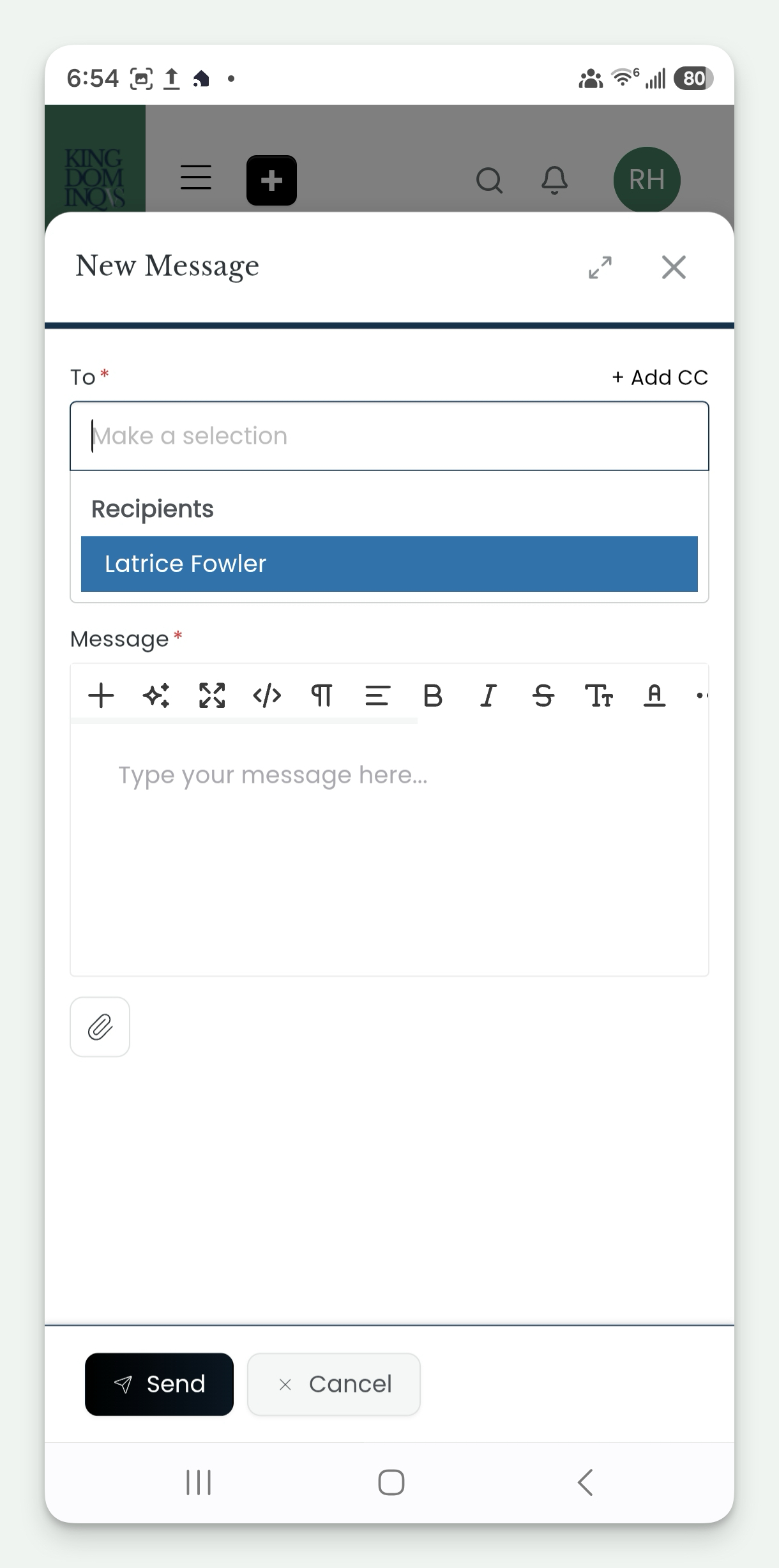
The plus icon in the top nav opens a new message to your PSM directly, no need to go through Agent Mail first.
Same as desktop, the bell and the initials icon are both here. Tap your initials to open the fly-out menu, Log Out at the top, and Account underneath, tap Account to reveal My Profile/Settings.
Your portal is built for portrait view. If you turn your phone sideways, the menu becomes visible on the left, but it won't scroll, so you'll lose access to sections further down like Learning Lab. Keep your phone upright and use the hamburger menu to get everywhere you need.