This is where you land every time you log in, and it's built to keep the essentials in view. If you're ever wondering where something lives, start here.
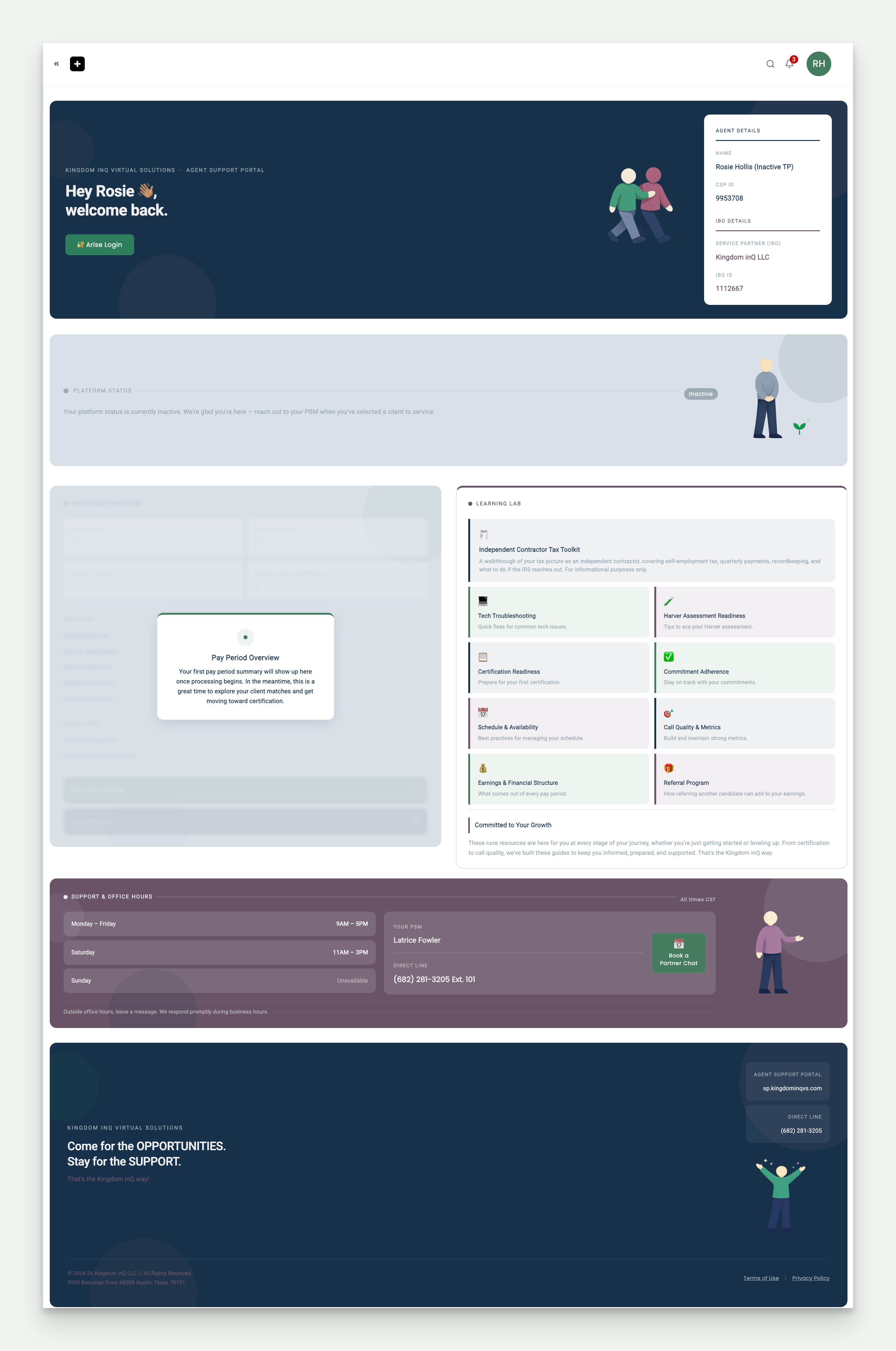
Right under your welcome message, you'll find a direct link to Arise Login. Keep this handy for the days you forget the URL.
The Agent Details card holds your CSP ID, your own credential on the Arise platform. The IBO Details card holds our IBO ID, Kingdom inQ LLC's credential as your service partner on Arise, not something tied to you personally. Both sit here in one place so you have them on hand if Partner Support, Tech Support, or a team lead on the Arise platform ever asks for either.
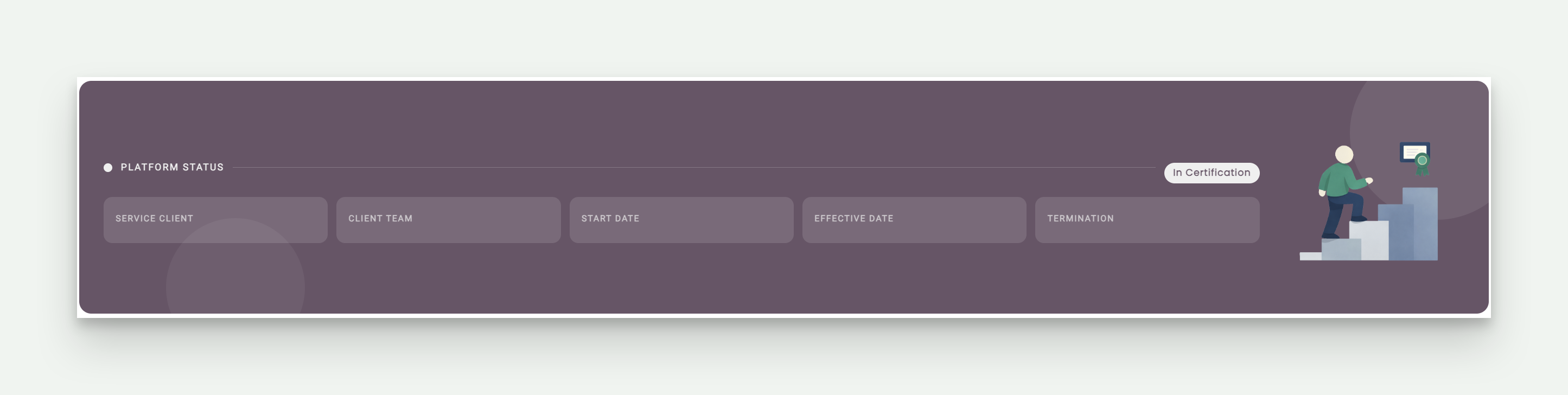
This updates as you move through your journey with us. When you're new or between clients, it reads Inactive, and we'll be glad to hear from you once you've selected a client to service. Once you enter certification for a client, it updates to In Certification, and you'll see the servicing client, client team, start date, effective date, and termination date for that SOW.
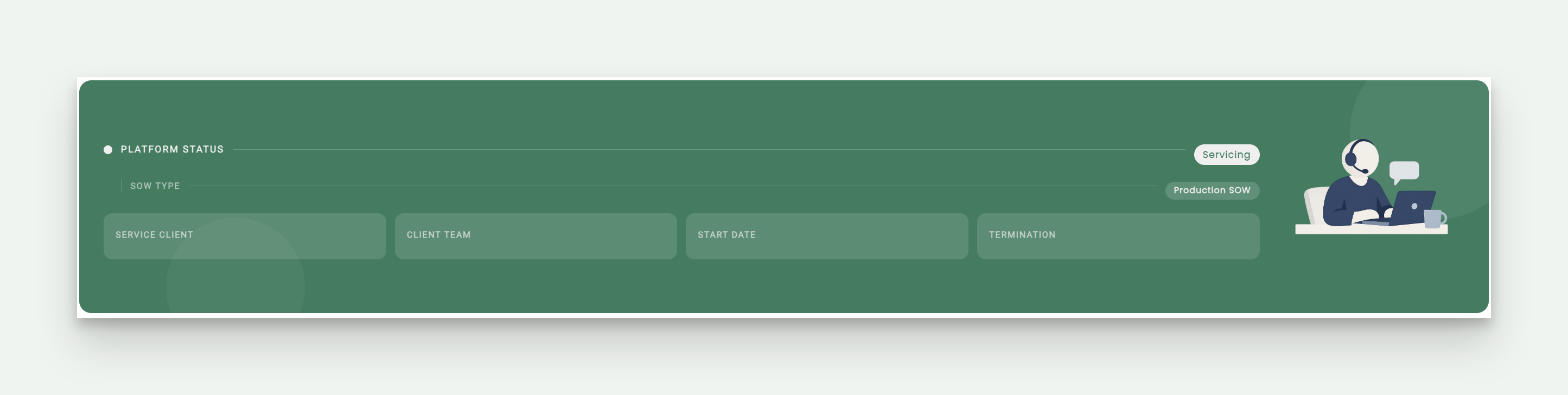
Once you're actively servicing, status updates to Servicing, and a second field appears underneath, SOW Type. This tells you whether you're in a Production SOW or a Renewal SOW. Since you can service more than one client at a time, you may see more than one SOW Type card, each labeled for its client. Effective Date only appears during Certification, it isn't part of the Production or Renewal view.
This shows your current pay period earnings and your year-to-date net, updated every pay period. If you're brand new, this section will show a placeholder message until your first pay period processes.
From time to time, a pop-up announcement will appear when you log in. These come from us, so you'll always know it's Kingdom inQ Virtual Solutions keeping you posted, on anything worth knowing right away.
Two icons live here. The notification bell shows a number when you have something waiting, and the initials icon opens your fly-out menu, where you'll find Log Out and Account, which expands to My Profile/Settings.
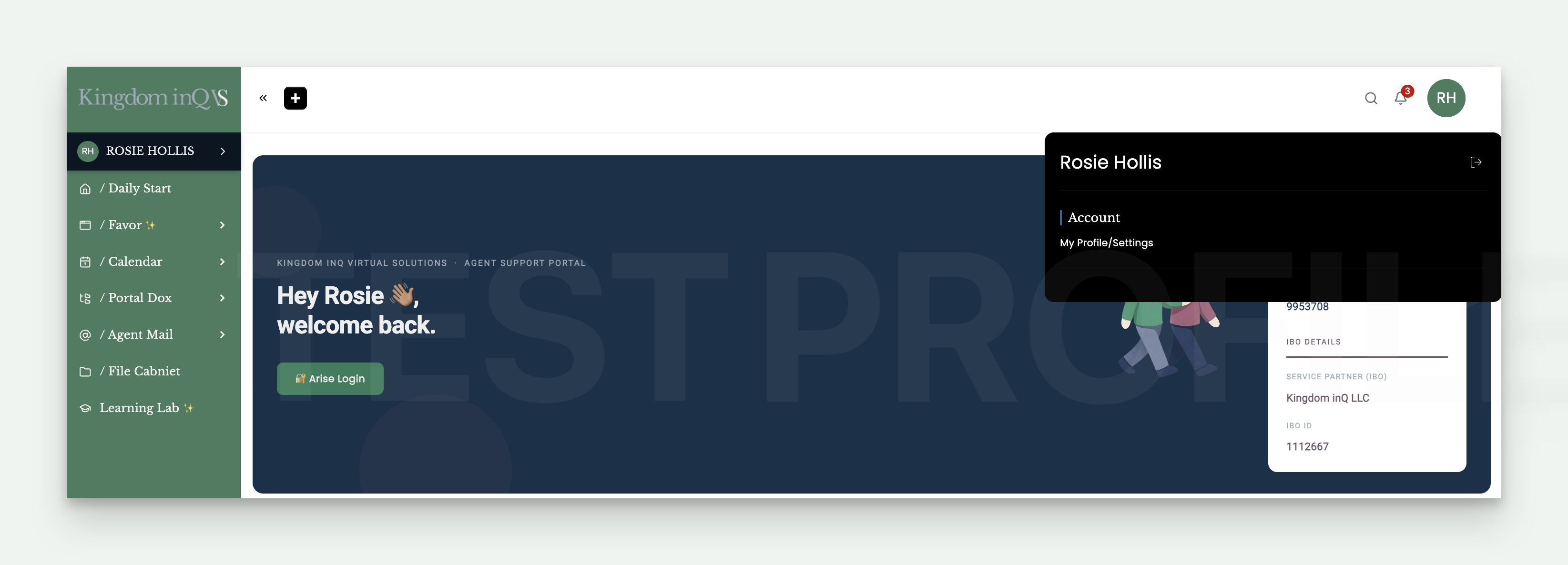
Down the left side, you'll find quick access to everywhere else in your portal, Daily Start, Favor, Portal Dox, Agent Mail, Filing Cabinet, and Learning Lab.
Scroll down and you'll find this section, your PSM's name, direct line, and office hours. This is also where you'll find Partner Chats, one-on-one sessions you can book directly with your PSM.
The footer holds your Terms of Use and Privacy Policy links, along with the current copyright year.